How to insert shortcodes for video and audio in WordPress theme.
All themes developed by MWtemplates have a unique feature to insert video or audio content without any plugins. For example, it is enough to paste such embed code
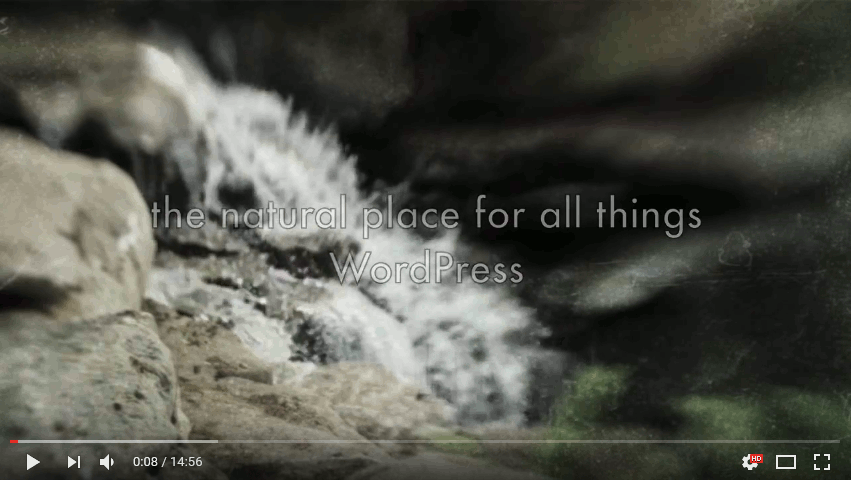
[embed width="800" height="600"]https://www.youtube.com/watch?v=tKmv_WB95FM[/embed] in the first line of your blog and as a result you receive a video content like on the screenshot below.
It is very simple to use it, just copy share embed code from any online video such as youtube, vimeo, wistia. Choose width and height in embed tags and paste a link to video file between tags.
Very often it is necessary to publish video or audio in any part of a page in your theme. By default you can use media gallery build in WordPress administrative panel, but it is more handy to use plugin Ultimate Shortcodes. With this plugin, you can add audio/video content to your pages using shortcodes. Also the plugin has many additional opportunities to add other different media like galleries, lightboxes, frames, highlights and etc:
Please follow these instructions to install and use this plugin:
1. Click "Plugins" > "Add New".
2. Use keywords in the search form "Shortcodes Ultimate".
3. In the results of search you will see plugin "Shortcodes Ultimate".
4. Click "Install" and "Activate" buttons.
Now everything is ready to use the plugin. Select any page in WordPress administrative panel on which you want to add video or audio and click "Insert Shortcode". You will see the list of available media for which you may choose a shortcode:
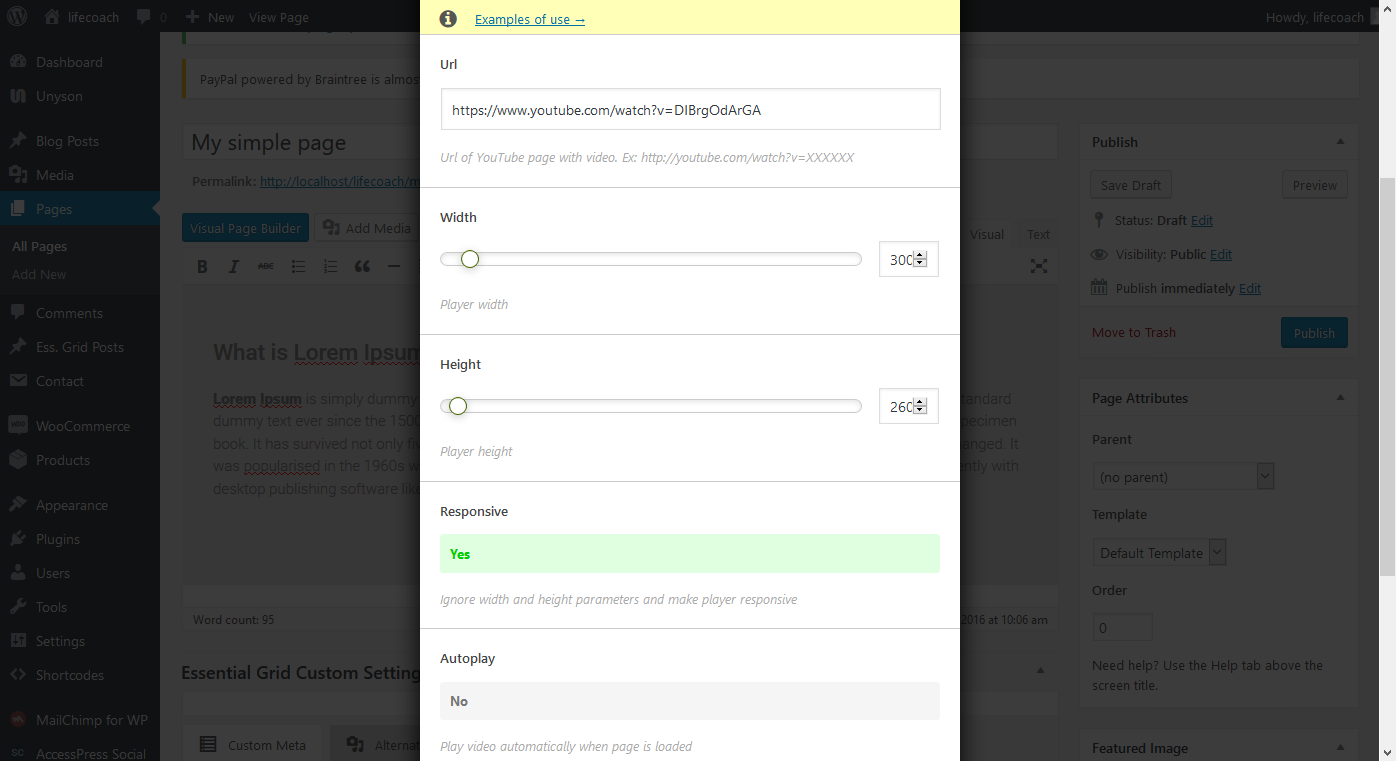
For example, if you want to insert video from youtube.com in your blog, click "Youtube button" in suggested list. After that you will see a window with the settings like on the screenshot below:
Paste a link from youtube.com to url string, choose other settings and click "Insert Shortcode". In this case, we use [su_youtube url="http://youtube.com/watch?v=DR2c266yWEA"] shortcode. Click "Publish" and you will view all changes on the proper page of your website. That is the result:
This plugin provides a lot of different shortcodes for adding video and audio. You can find very detailed information about how to use all these shortcodes in this manual or in this video.
In WordPress administrative panel this plugin contains "Cheatsheet" section. Click it and you will see attributes and examples of code for shortcodes. You can copy any of them and paste it directly to your page, post or widget. We provided for you these screenshots on which you can see the most recently used shortcodes:
<h2>YouTube video</h2>
[su_youtube url="http://youtube.com/watch?v=DR2c266yWEA"]
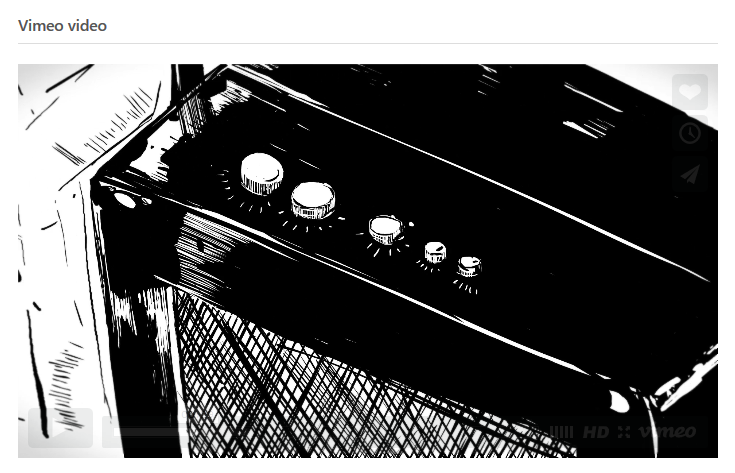
<h2>Vimeo video</h2>
[su_vimeo url="http://vimeo.com/78106175"]
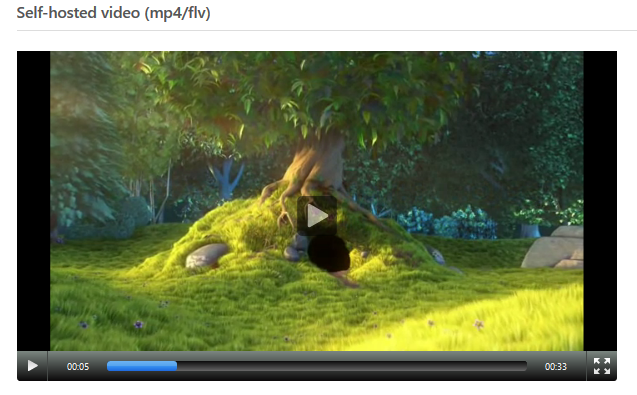
<h2>Self-hosted video (mp4/flv)</h2>
[su_video url="http://www.jplayer.org/video/m4v/Big_Buck_Bunny_Trailer.m4v"]
<h2>Self-hosted audio-files (HTML5/Flash)</h2>
[su_audio url="http://www.jplayer.org/audio/mp3/TSP-01-Cro_magnon_man.mp3?1"]
<h2>Audio player with custom width</h2>
[su_audio url="http://www.jplayer.org/audio/mp3/TSP-01-Cro_magnon_man.mp3?2" width="400px"]
<h2>Advanced YouTube setup #1 - no controls, no related videos</h2>
[su_youtube_advanced url="http://youtu.be/NbE8INOjTKM" controls="no" showinfo="no" rel="no"]
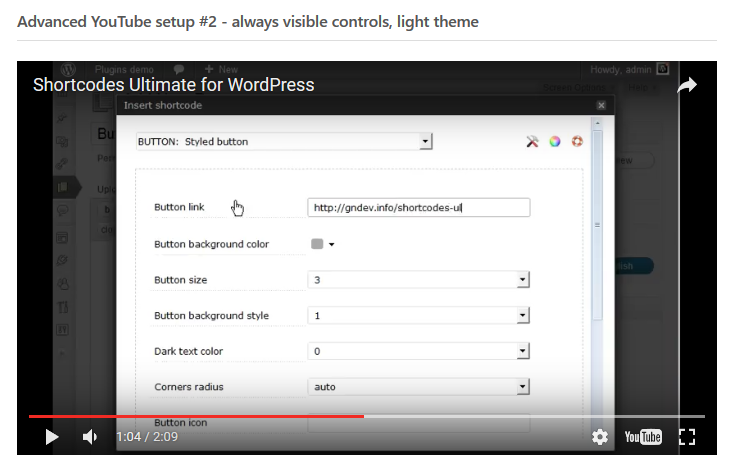
<h2>Advanced YouTube setup #2 - always visible controls, light theme</h2>
[su_youtube_advanced url="http://youtu.be/NbE8INOjTKM" autohide="no" theme="light"]
<h2>Media grid: responsive videos + columns</h2>
[su_row]
[su_column size="1/2"] [su_youtube] [/su_column]
[su_column size="1/2"] [su_vimeo] [/su_column]
[/su_row]
[su_row]
[su_column size="1/2"] [su_youtube] [/su_column]
[su_column size="1/2"] [su_vimeo] [/su_column]
[/su_row]
All these examples are available directly from "Shortcodes Ultimate" plugin in your WordPress administrative plugin. Just click "Shortcodes" > "Examples".
If you have any issues or questions regarding this plugin, please visit these links: