How to use Unyson Page Builder
Most pages in theme are built with the help of Unyson Page Builder, which does not require any programming skills and has drag and drop feature, it is very flexible and free.
We have prepared for you detailed instructions about how to use this helpful builder. Please read this manual attentively and you will modify existing pages or create completely new page with great pleasure.
Unyson Page Builder - is the extension, which is initially installed with the theme:
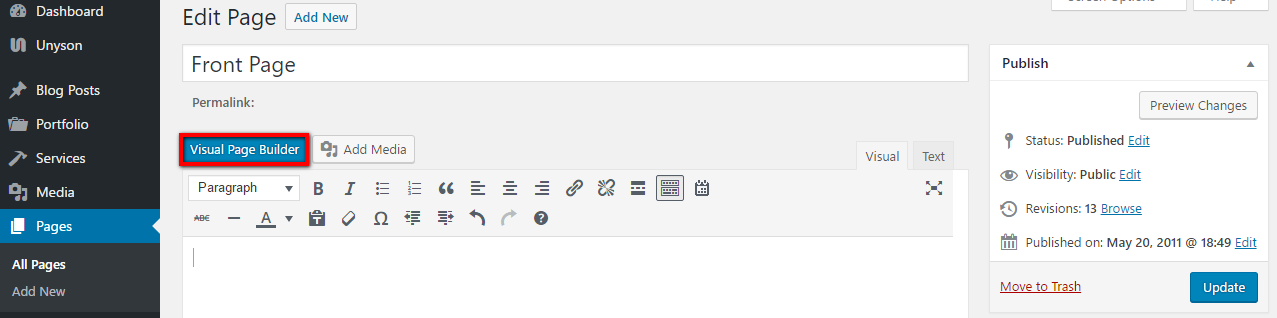
To start use page builder, click WP Dashboard => Pages => All Pages. Select existent page or create new:
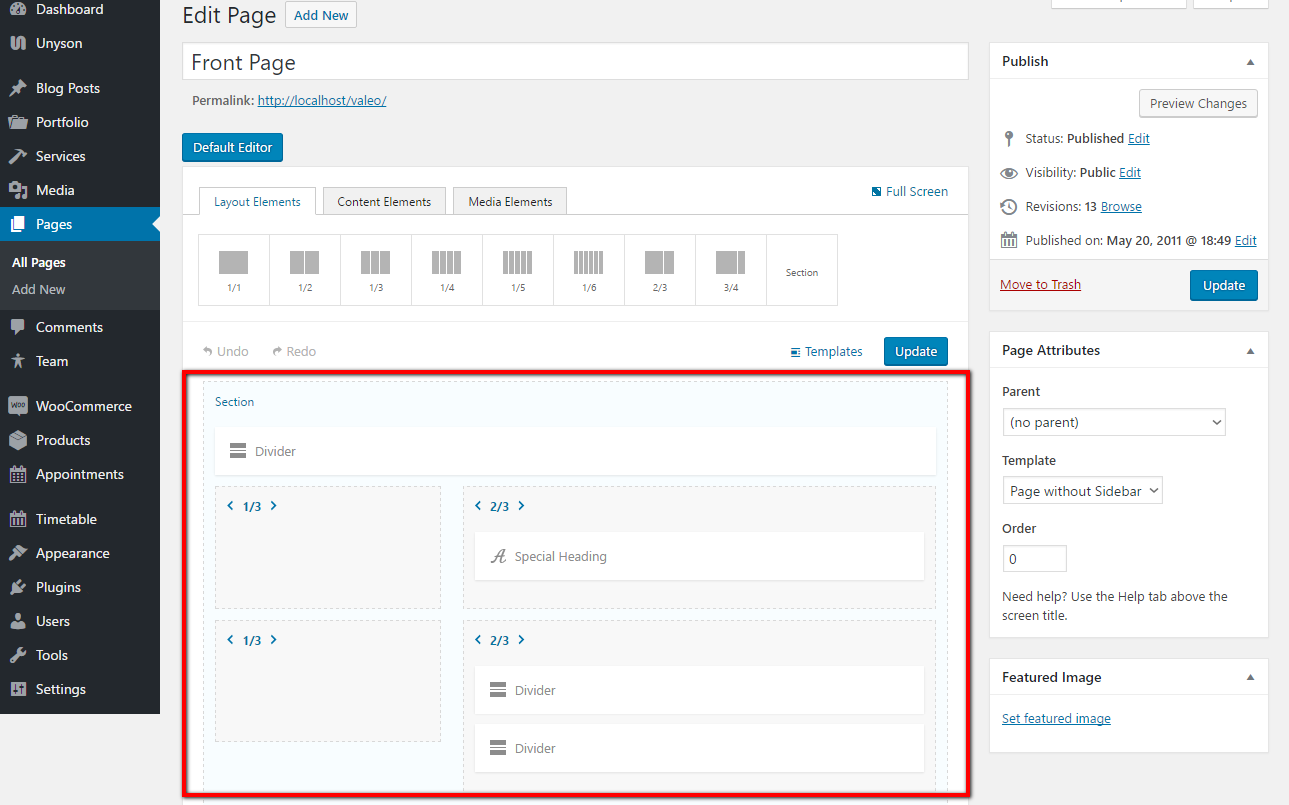
Click Visual Page Builder button and you will view the structure of the page. Here you may see all sections with appropriate elements inside them.
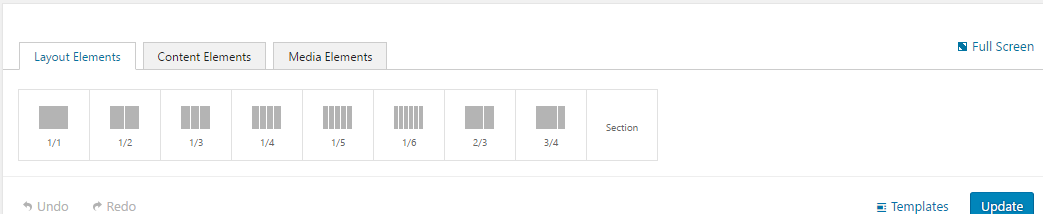
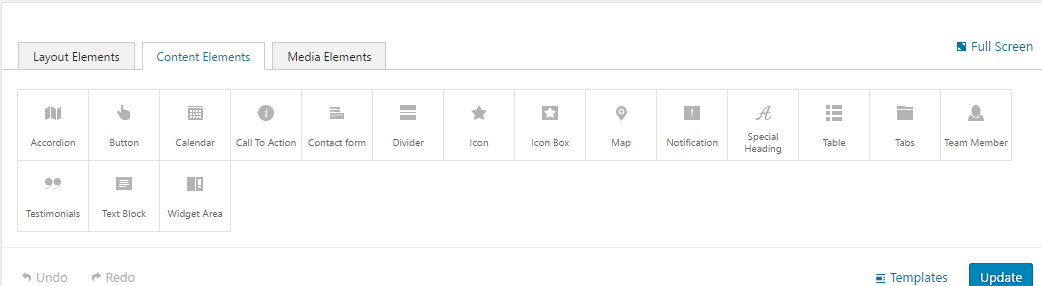
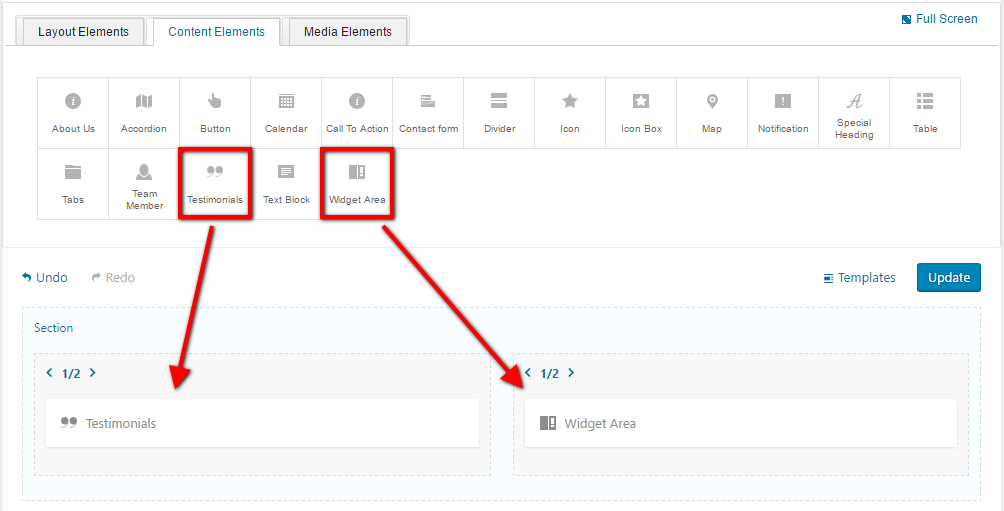
By default, Unyson Page Builder contains standard set of Layout Elements, Content Elements, Media Elements. We have carefully chosen appropriate and optimal set of these elements for every theme. In different themes you may meet the default set of theme elements with some custom elements developed especially for this theme:
Layout Elements:
Content Elements:
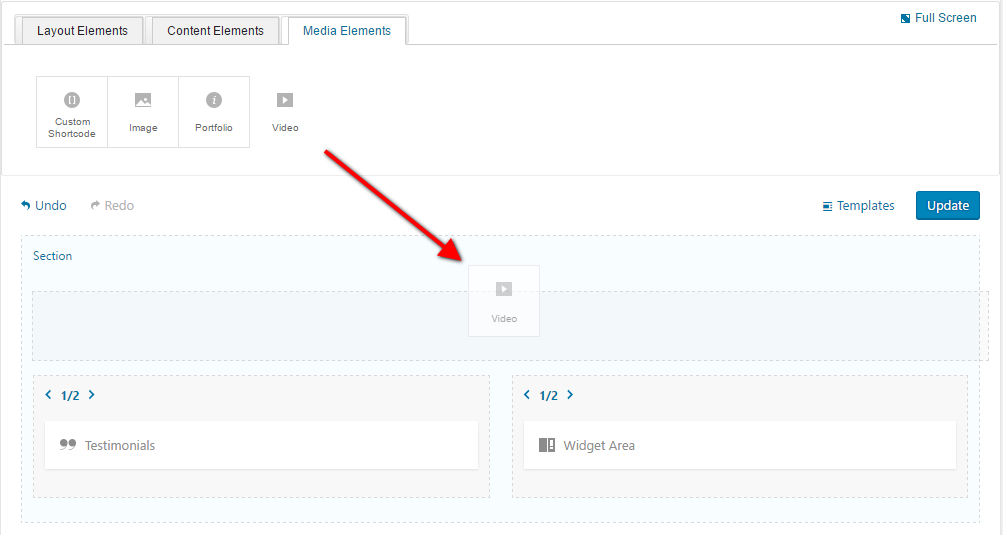
Media Elements:
Every Element in Unyson Page Builder has the following settings:
By default, Unyson Page Builder contains standard set of Layout Elements, Content Elements, Media Elements. We have carefully chosen appropriate and optimal set of these elements for every theme. In different themes you may meet the default set of theme elements with some custom elements developed especially for this theme.
In process of editing and composing pages in Unyson Page Builder are always used the following principles:
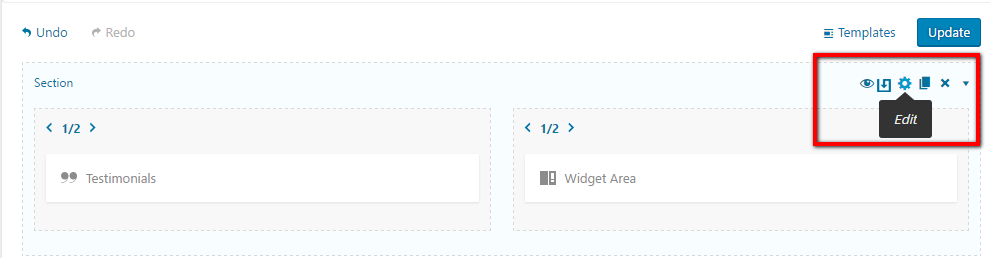
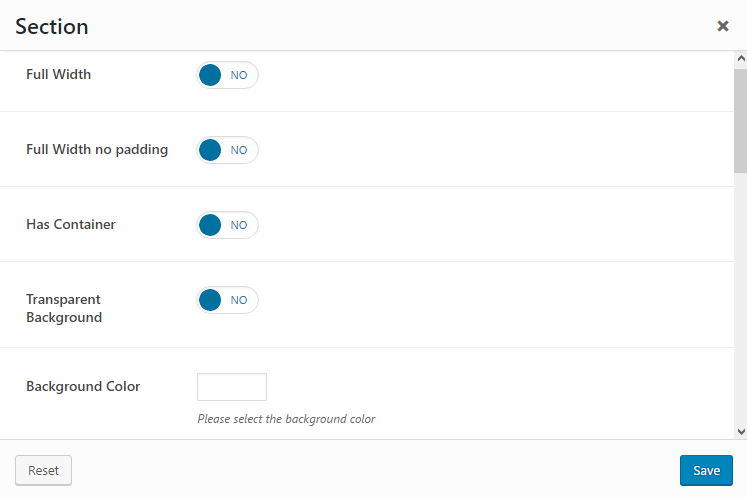
- section layout element has additional settings, such as: full-width option, background color/image etc.:
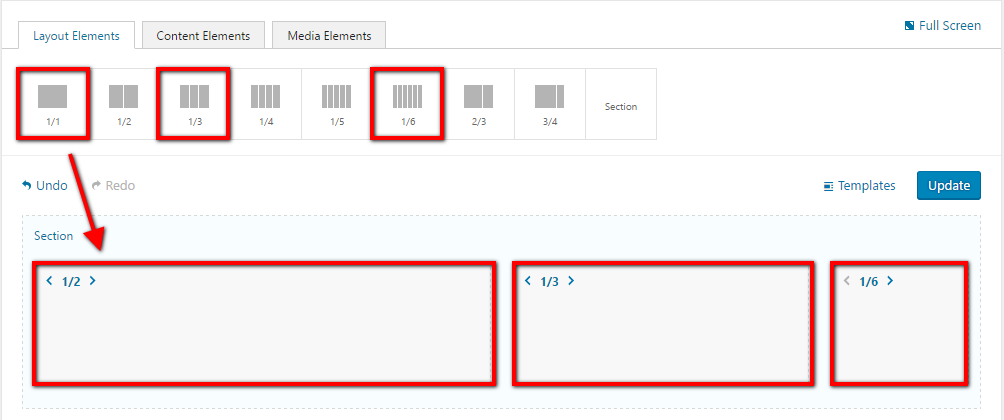
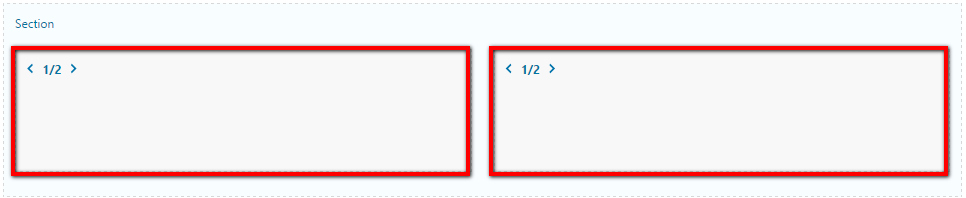
- such layout element like Section can contains other smaller layout elements: 1/2, 1/3, 1/6 elements etc.:
- it is possible to change order and size of layout elements for subsequent adding in them other elements:
- using drag and drop feature you may insert in layout elements different content and media elements:
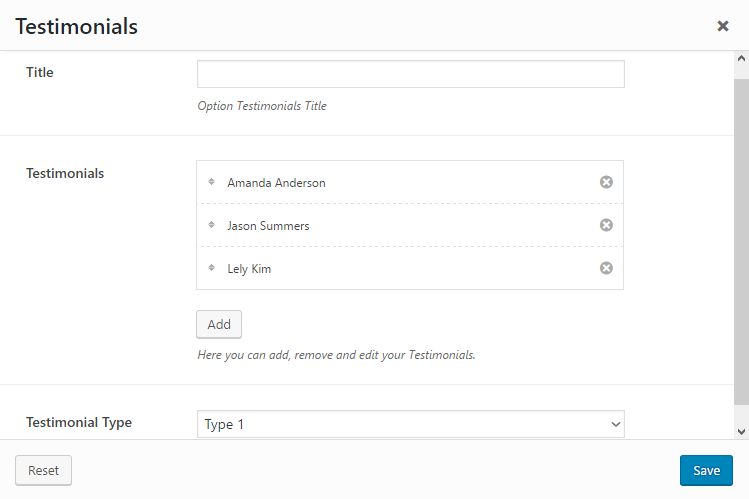
- every content and media element has it's own appropriate options:
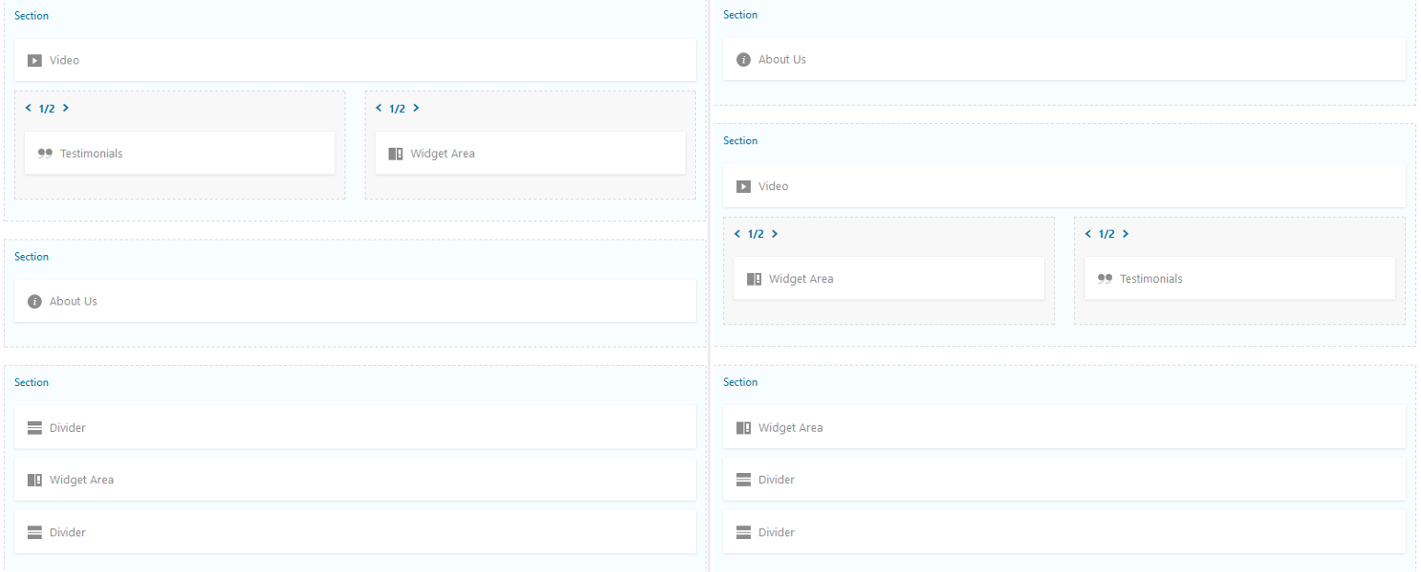
- you may change the order and sequence of sections and elements using drag and drop feature. Please compare the structure of the same page from left side and from right side. before and after modifying :
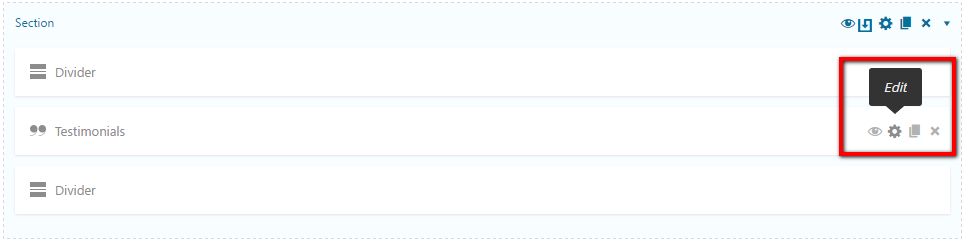
- it is possible to change the order of content and media elements inside layout element:
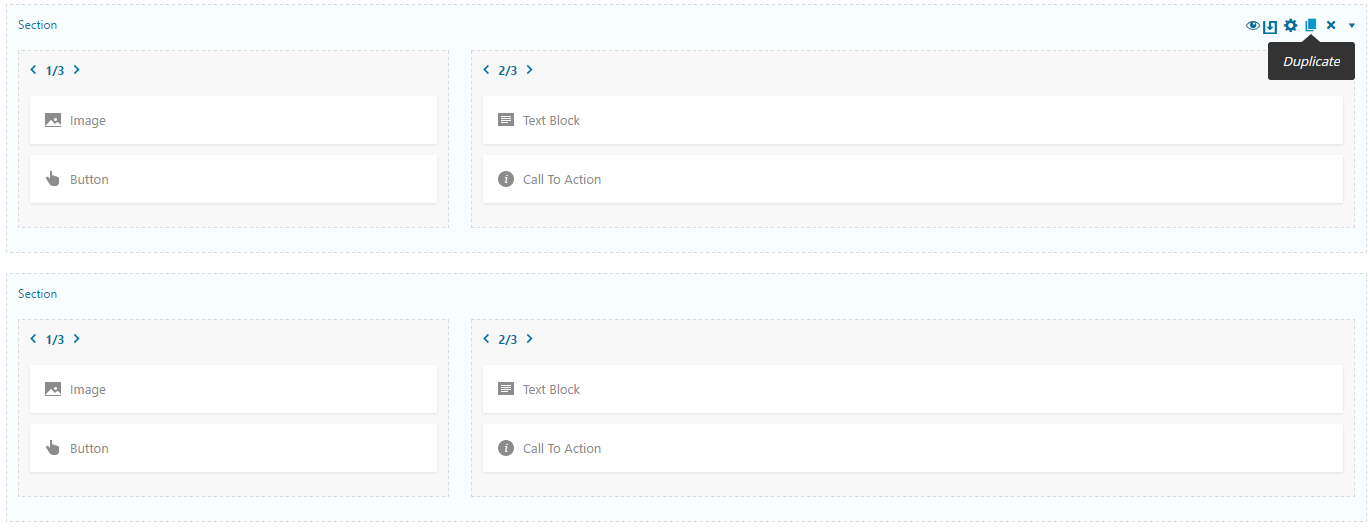
- you may duplicate any section and element if you need similar appearance of these items:
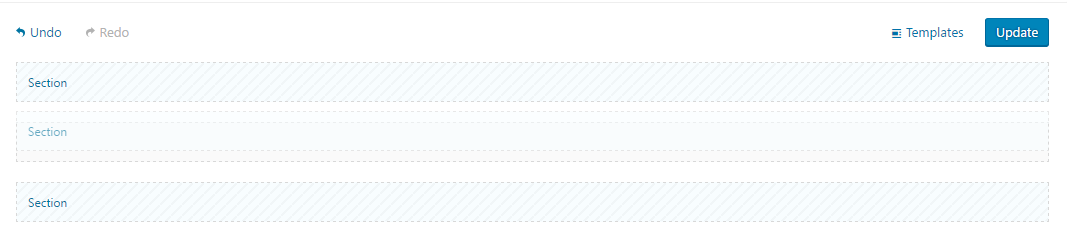
- it is very handy to collapse sections with the content inside when you want to change their sequence. It helps you to avoid any confusion while this process:
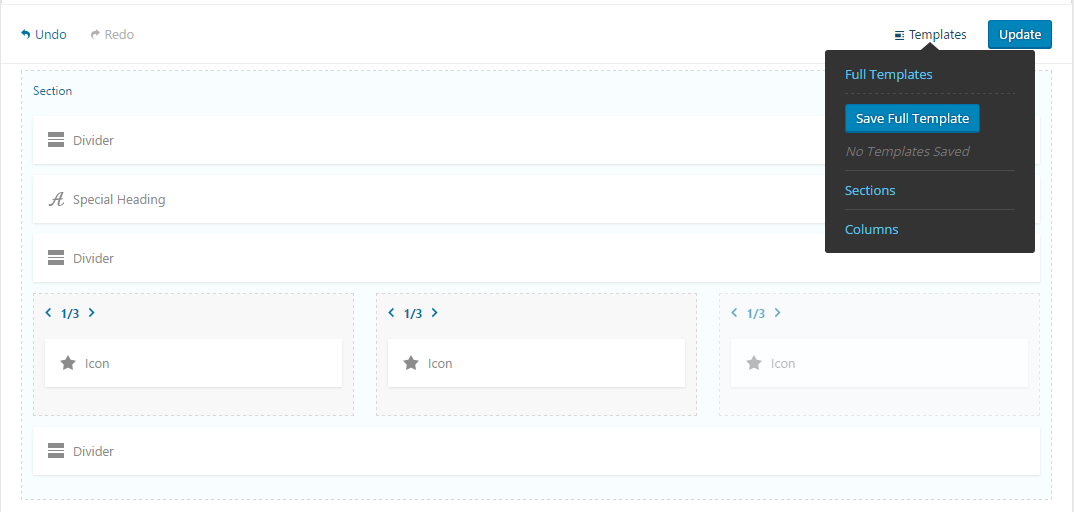
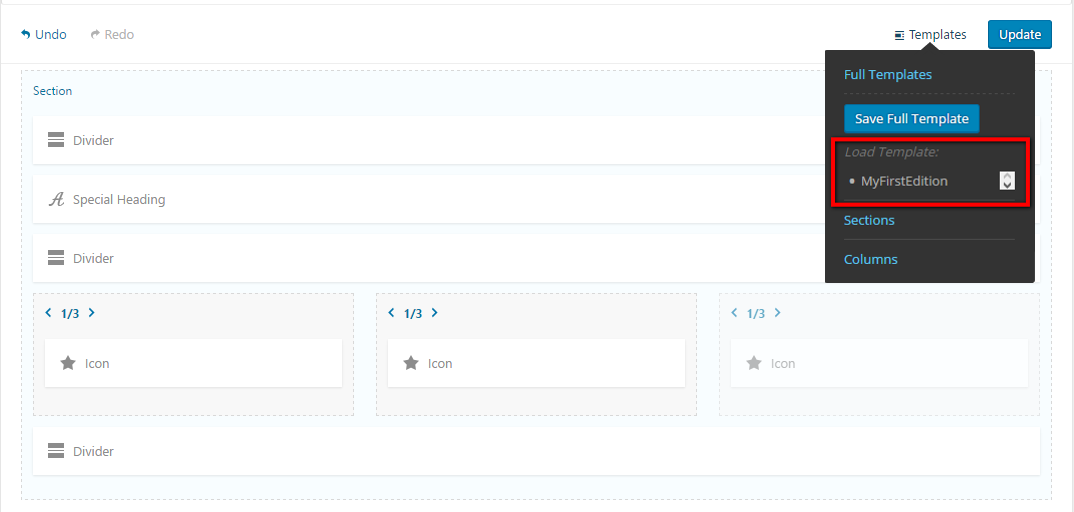
- it is possible to save as template any page. For example: you have created page in Unyson Page Builder and you want to make some additional changes in it. But there is no 100% guarantee, that you will completely like new changes. Maybe you'll want to return the previous version of page. In this case the saved template of page in Unyson Page Builder is very helpful:
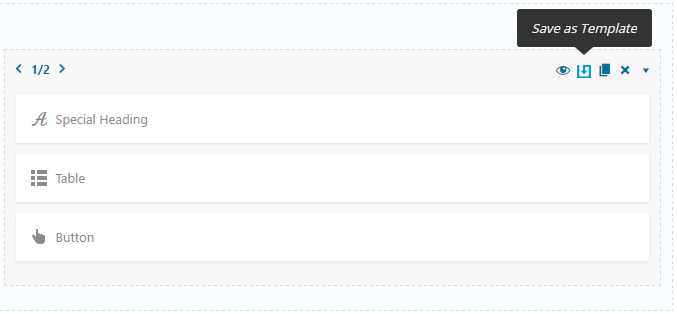
- in the similar way you may save as template section or layout element with content inside. Then it is possible to insert saved section or element in any page:
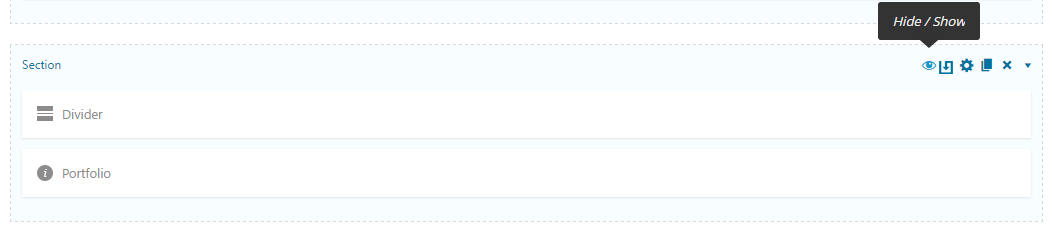
- you can temporary to hide/show any unnecessary section or element:
As you see, in all previous examples we have described in details how to compose the appearance of front page or any other page for your website with Unyson Drag & Drop Page Builder. Please do not forget to update modified content with Unyson Page Builder. Please look at the screenshot below:
If you have any additional questions about Unyson Drag & Drop Page Builder, please visit these links: